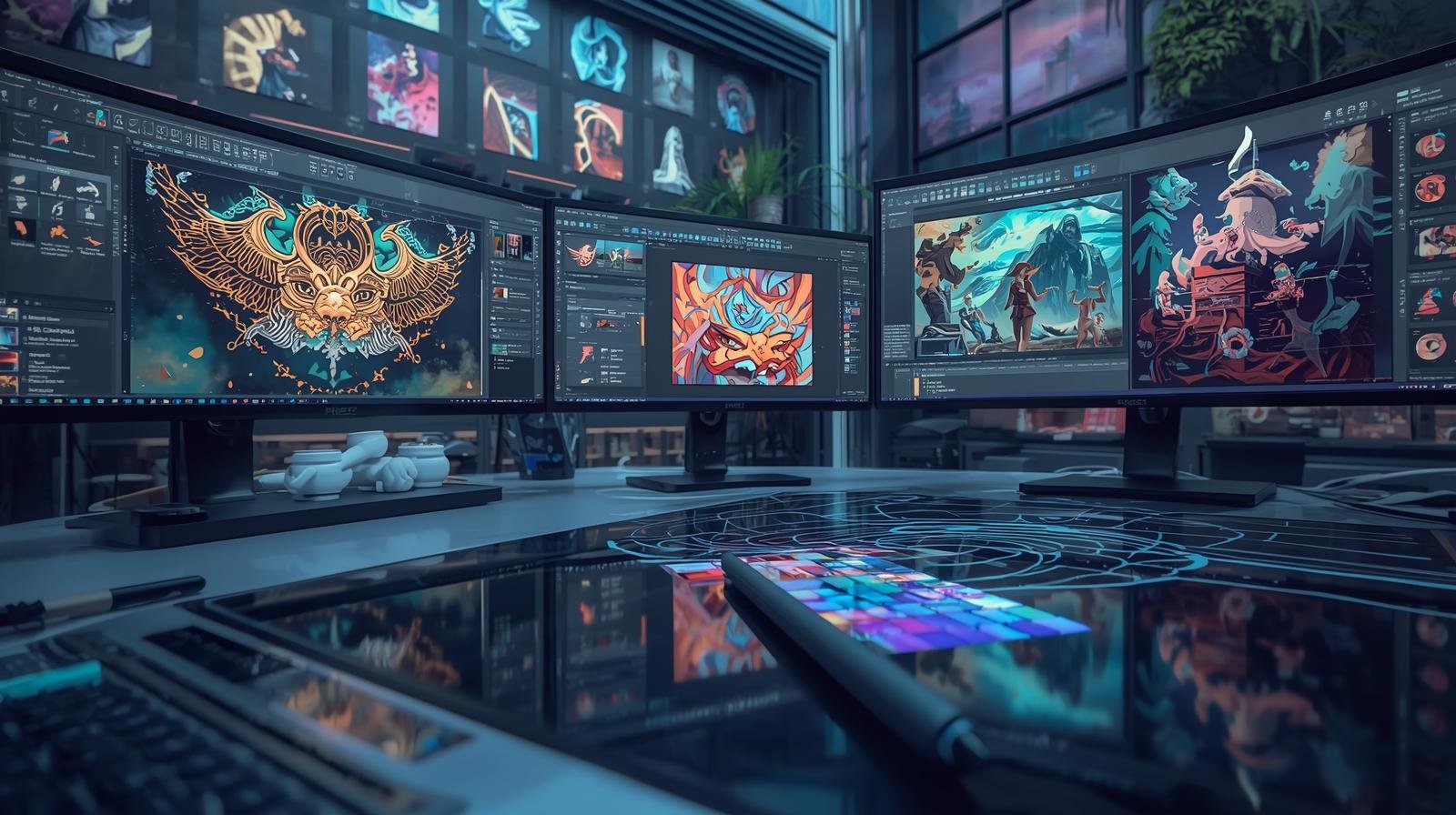
Digital art relies on software to create, edit, and refine artwork. The right software can improve workflow, efficiency, and creative possibilities. In 2026, artists have access to a wide range of programs, each with unique features for illustration, painting, animation, and design. Understanding software capabilities helps artists select the best tools for their needs.
This guide reviews top digital art software, their features, and practical considerations for beginners and professionals.
Understanding Digital Art Software
Digital art software simulates traditional media and adds tools unique to digital workflows. Common features include:
- Brush libraries for different textures and styles
- Layer management for non-destructive editing
- Blending modes and color adjustment tools
- Vector and raster support for precision and scalability
Choosing software depends on the intended type of artwork and the device used.
Criteria for Choosing Software
Before selecting software, consider:
- Device compatibility: Ensure the program runs on your computer, tablet, or touchscreen device.
- User interface: Intuitive software reduces the learning curve.
- Tool variety: Brush types, layers, blending options, and effects.
- Performance: Smooth operation with large files and high-resolution artwork.
- Community and tutorials: Learning resources support growth and troubleshooting.
Considering these criteria ensures efficient workflow and skill development.
Top Digital Art Software in 2026
1. Adobe Photoshop
- Industry-standard software for painting, photo editing, and design.
- Extensive brush library and custom brush creation.
- Layer-based workflow with advanced blending modes.
- Supports vector shapes and raster painting.
Photoshop is ideal for artists seeking versatility and professional-grade tools.
2. Procreate
- Designed for iPad, popular among illustrators.
- Simple interface with intuitive touch and stylus controls.
- Offers high-quality brushes and layering options.
- Supports time-lapse recording of the artwork process.
Procreate is ideal for mobile artists and those focusing on illustration.
3. Clip Studio Paint
- Designed for comics, illustrations, and animation.
- Advanced pen and brush tools for precise control.
- Perspective rulers, panel layout, and vector support.
- Strong animation capabilities for frame-by-frame work.
Clip Studio Paint is suitable for comic artists and animators.
4. Krita
- Free, open-source painting program for desktops.
- Wide variety of brush engines and textures.
- Layer management, masks, and blending options.
- Customizable interface for personal workflow optimization.
Krita is ideal for beginners, students, and budget-conscious artists.
5. Corel Painter
- Specialized for realistic media simulation.
- Offers brushes mimicking oils, watercolor, pastels, and more.
- Advanced canvas texture and blending simulation.
- Suitable for artists wanting traditional media feel digitally.
Corel Painter is recommended for realism-focused digital painting.
6. Affinity Designer
- Vector-based design software for illustrations, logos, and graphics.
- Combines raster and vector tools in one program.
- Precision controls for lines and shapes.
- Efficient performance for complex compositions.
Affinity Designer works well for digital illustration with scalable artwork needs.
Comparing Features
| Software | Platform | Strengths | Ideal Users |
|---|---|---|---|
| Photoshop | Windows/Mac | Versatile, professional tools | Professionals, advanced users |
| Procreate | iPad | Touch-based, intuitive | Illustrators, mobile artists |
| Clip Studio Paint | Windows/Mac/iPad | Comics, animation | Comic artists, animators |
| Krita | Windows/Mac/Linux | Free, brush variety | Beginners, students |
| Corel Painter | Windows/Mac | Realistic media | Traditional-media artists |
| Affinity Designer | Windows/Mac/iPad | Vector & raster | Graphic designers, illustrators |
Understanding feature differences helps match software to artistic goals.
Device Considerations
Some software requires high-performance devices:
- iPads or tablets with stylus support for touch-based programs
- Desktop computers with sufficient RAM and graphics capabilities for complex files
- Pen displays for direct on-screen drawing
Matching software to compatible hardware ensures smooth performance.
Practice and Learning
New software requires time to learn:
- Follow tutorials for basic and advanced tools
- Experiment with brushes, layers, and effects
- Recreate simple artworks to understand workflow
- Join communities for tips and feedback
Practice ensures proficiency and accelerates workflow efficiency.
Integrating Multiple Software
Many artists use more than one program:
- Sketch in Procreate, refine in Photoshop
- Use Krita for experimental practice, Clip Studio for final composition
- Combine vector software with raster tools for hybrid projects
Integrating software expands creative flexibility.
Common Challenges
- Overwhelming number of tools and options
- Learning curve for complex programs
- High system requirements for some software
Structured practice and focusing on essential tools reduces frustration.
Final Tips
- Start with software matching skill level and device availability
- Focus on mastering basic brushes, layers, and tools
- Explore tutorials and practice exercises consistently
- Upgrade software based on evolving creative needs
Choosing the right software supports productivity, skill development, and creative exploration.
Conclusion
In 2026, digital art software provides diverse options for artists of all levels. Understanding platform, workflow, and features is essential for selecting the right tool. Photoshop, Procreate, Clip Studio Paint, Krita, Corel Painter, and Affinity Designer all offer unique advantages. Regular practice, experimentation, and workflow optimization ensure artists can create digital artwork efficiently and effectively. Selecting software that aligns with personal style and device compatibility enhances artistic growth and output.
About the Author