Graphic tablets are essential tools for digital artists. They allow precise control over brush strokes, pressure, and flow while creating digital artwork. Many beginners struggle with adapting to a tablet because it differs from traditional media. Learning how to use a graphic tablet effectively helps artists improve accuracy, speed, and workflow in digital painting and illustration.
This guide explains how tablets work, tips for getting comfortable, and techniques to maximize efficiency.
Understanding Graphic Tablets
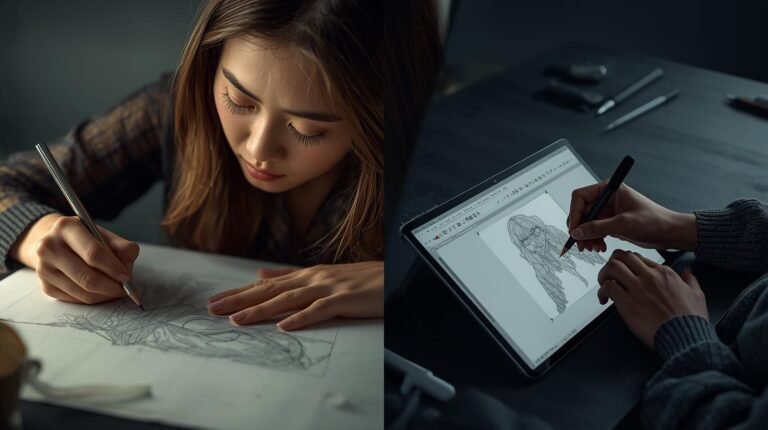
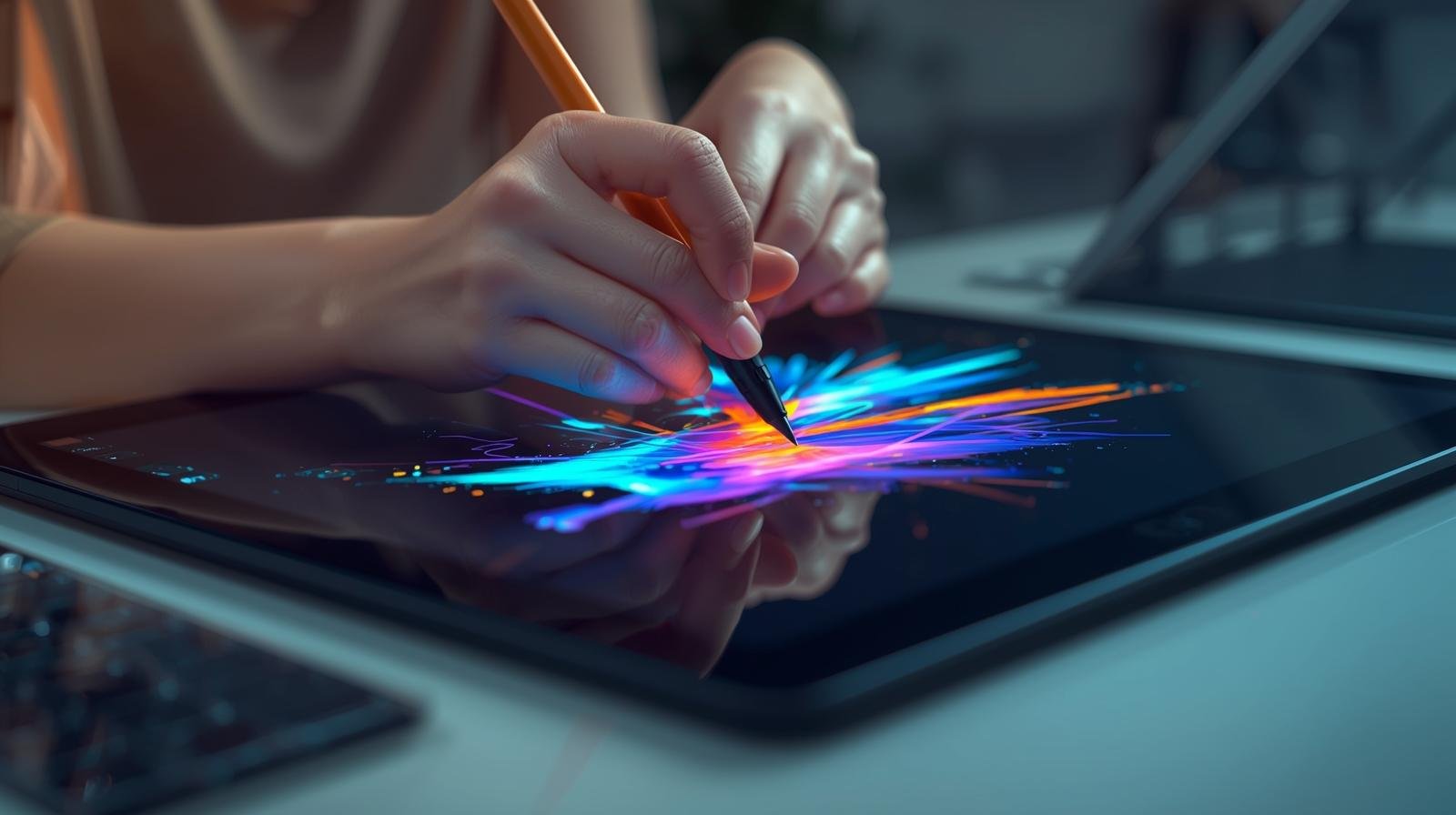
Graphic tablets consist of a flat surface and a stylus (pen). Pressure sensitivity, tilt recognition, and customizable buttons make the tablet versatile for digital art. Tablets come in two types:
- Pen tablets: Require looking at a separate computer screen while drawing.
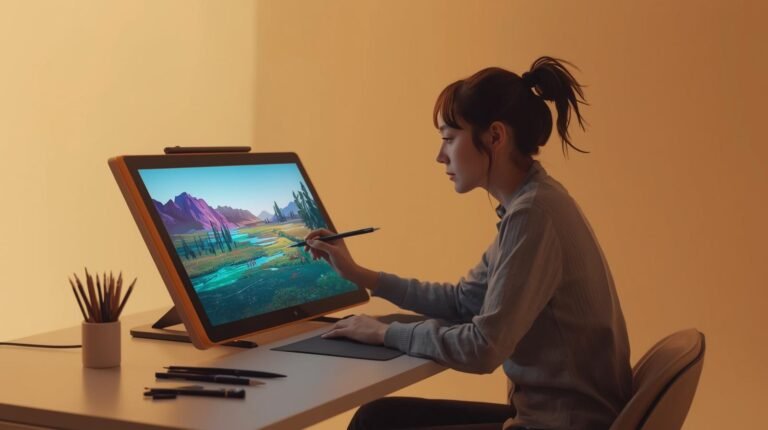
- Display tablets: Allow direct drawing on the screen, mimicking traditional media more closely.
Knowing the type of tablet helps beginners select proper techniques.
Setting Up Your Tablet
Before painting, set up your tablet:
- Install drivers and software: Ensure the tablet functions properly with your computer.
- Calibrate the stylus: Align the pen cursor with the display.
- Adjust pressure settings: Modify sensitivity for smooth lines and brush control.
- Customize shortcut buttons: Assign common functions like undo, brush size, or zoom for faster workflow.
A proper setup prevents frustration and improves efficiency.
Getting Comfortable
Using a tablet may feel unnatural at first. To adapt:
- Maintain good posture: Sit upright with the tablet at a comfortable angle.
- Practice hand-eye coordination: Begin with simple lines, curves, and shapes.
- Start with short sessions: Gradually increase time to build stamina.
- Keep the hand relaxed: Tension reduces precision and causes fatigue.
Comfort and ergonomics directly affect control and accuracy.
Understanding Pressure Sensitivity
Pressure sensitivity allows varying line width and opacity by pressing harder or softer with the stylus. Key points:
- Light pressure produces thin, subtle lines.
- Heavy pressure produces thick, bold lines.
- Use consistent pressure for smooth shading or calligraphy effects.
Practicing pressure control is essential for realistic strokes.
Using Tilt and Angle
Some tablets detect stylus tilt. Tilt affects brush orientation and stroke shape. Artists can simulate natural brush movement for digital media like watercolor, charcoal, or pencil. Experimenting with tilt improves realism.
Brush Control Techniques
- Short strokes: Useful for detail and edges.
- Long strokes: Ideal for smooth lines or backgrounds.
- Layering strokes: Build volume, texture, and shading gradually.
- Blending strokes: Use brush opacity, flow, and pressure to merge colors seamlessly.
Practicing stroke variation develops versatility.
Managing Layers on Tablets
Layers separate elements of artwork. Effective use includes:
- Organizing layers by foreground, midground, and background.
- Locking or grouping layers to prevent accidental edits.
- Naming layers clearly to avoid confusion.
Layer management simplifies adjustments and corrections.
Zooming and Navigation
Digital artwork often requires zooming in for detail and out for composition. Use tablet gestures or shortcut keys efficiently. Frequent zoom adjustments improve precision without losing overall perspective.
Common Challenges and Solutions
- Cursor mismatch: Calibrate stylus to align with display.
- Slow response: Update drivers and reduce screen resolution if necessary.
- Overcompensation: Practice simple lines to adapt hand movement.
Addressing challenges early accelerates comfort with the tablet.
Practice Exercises
- Draw basic shapes and patterns to test pressure sensitivity.
- Recreate simple objects digitally, focusing on smooth lines.
- Apply different brush types on separate layers.
- Experiment with blending and shading techniques.
Consistent practice strengthens coordination and brush control.
Observing Workflow of Other Artists
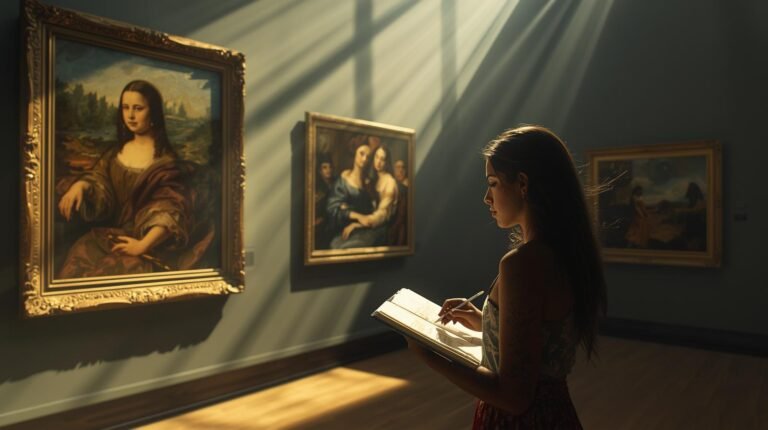
Watching digital painting tutorials or time-lapse videos helps beginners understand tablet use. Pay attention to shortcut keys, brush settings, and layer techniques. Observing workflow inspires efficiency improvements.
Maintenance Tips
- Keep the tablet surface clean to prevent cursor inaccuracies.
- Store the stylus safely to protect the nib.
- Avoid excessive pressure that could damage the screen or pen.
Proper care ensures long-term performance.
Final Thoughts
Using a graphic tablet effectively requires understanding pressure, tilt, brush control, layers, and ergonomic practices. Beginners improve with structured practice, observation, and correct setup. Once comfortable, tablets enable faster, more precise, and flexible digital artwork. Mastery of the tablet is a foundation for advanced digital painting and illustration.
About the Author